-
Task
-
Resolution: Done
-
 Undefined
-
None
-
None
-
False
-
-
False
-
-
Test ArgoCD UI Login as part of 1.15.0 validation
Test Steps:
There are three approaches
I.
Try the logging in method by following Visualize your applications via the Argo CD UI section in https://spaces.redhat.com/pages/viewpage.action?spaceKey=GITOPS&title=KAM+and+DevConsole+end+to+end+Tests
II.
1. Install GitOps operator on your cluster
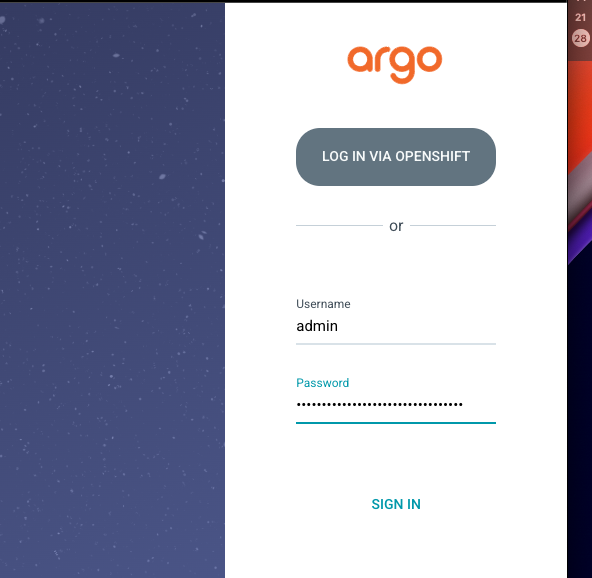
2. Navigate to Networking -> Routes in openshift-gitops project, click on the link that takes you to the ArgoCD UI page
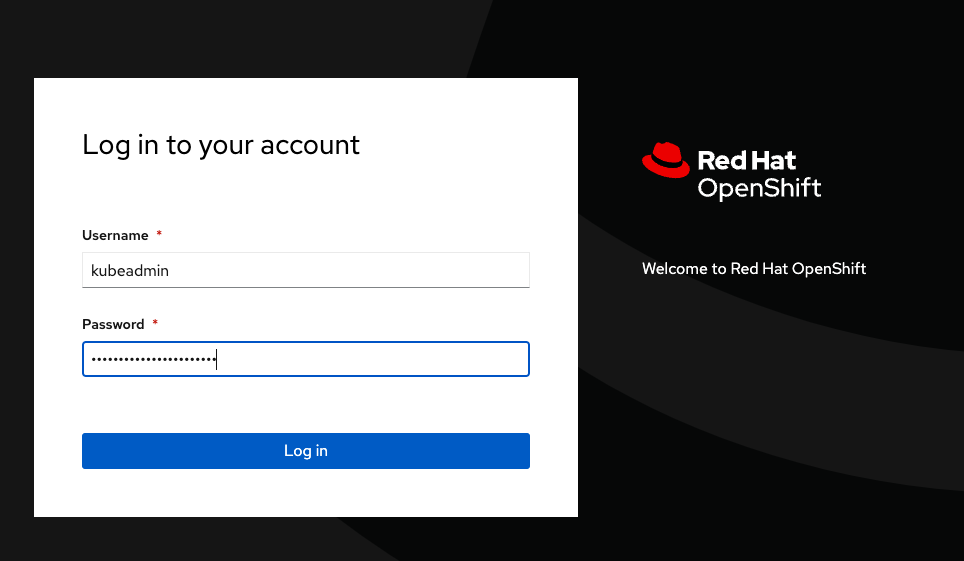
3. Log In Via Openshift
III.
1. Remove dex configuration from argocd CR
$ oc -n openshift-gitops patch argocd openshift-gitops --type='json' -p='[{"op": "remove", "path": "/spec/sso" }]'
2. Add to the ArgoCD CR :
oc -n openshift-gitops patch argocd openshift-gitops --type='json' -p='[{
  "op": "add",
  "path": "/spec/extraConfig",
  "value":{
    "oidc.tls.insecure.skip.verify": "true"
  }
},
{
  "op": "add",
  "path": "/spec/sso",
  "value": {
      "keycloak": {
          "rootCA": "---BEGIN---END---"
      },
      "provider": "keycloak"
    }
}]'
3. Restart argocd server pod
$ oc rollout restart deployment.apps/openshift-gitops-server -n openshift-gitops
4. Wait for keycloak-1-deploy pod in openshift-gitops namespace to be completed
5. Navigate to Networking -> Routes in openshift-gitops project and click on the link that takes you to the ArgoCD UI page
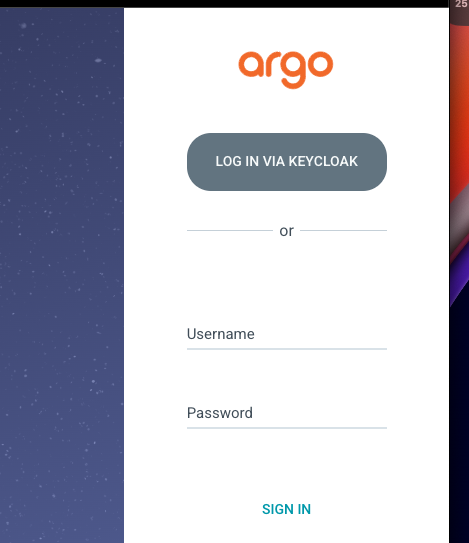
6. LOG IN VIA KEYCLOAK, Log in with openshift and follow the instructions